|
Keys Authentication
2011/03/06 |
| Configure SSH server to login with Keys Authentication. It is needed for it to make private key for client and public key for server. |
| [1] | Download 'puttygen.exe' from Putty's site.
|
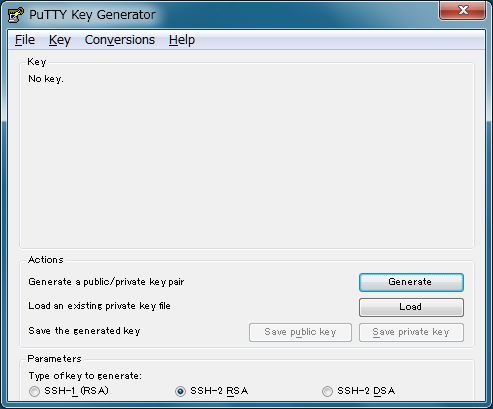
| [2] | Start 'puttygen.exe' and click 'Generate' button. |
|
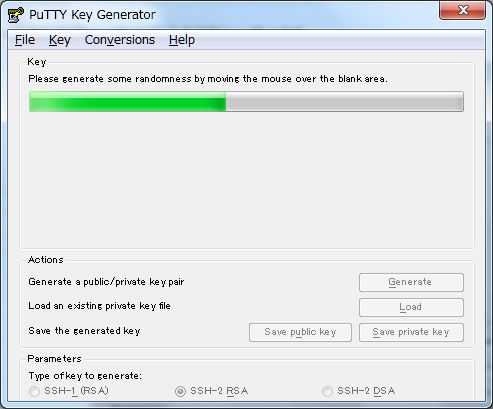
| [3] | Move mouse untill progress bar will be full. |
|
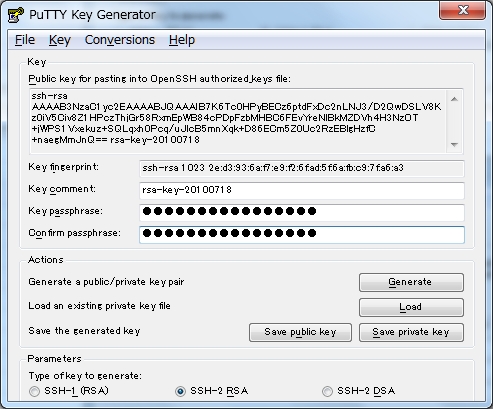
| [4] | Set passphrase in 'Key passphrase' and 'Confirm passphrase'. Next, Click 'Save public key' and 'Save private key' and Save keys with a file name you want. |
|
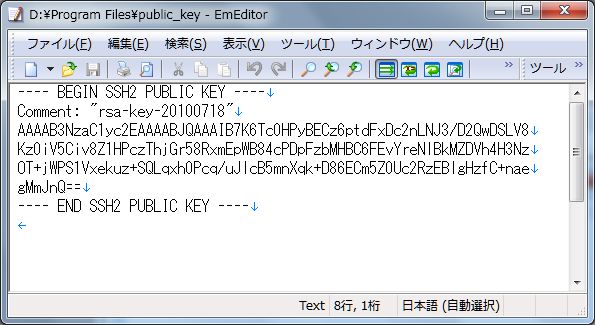
| [5] | Open 'public_key' you saved. |
|
| Remove first line and last line and replace second line to 'ssh-rsa' and then remove all indention like follows. 'ssh-rsa xxxxxxxxxxxxxxxxxxxxxxxxxxxxxxxxxxxxxxxxxxxxxxxx==' |
|

|
| [6] | Login with a user and put 'public_key'. |
|
squeeze@dlp:~$ mkdir .ssh squeeze@dlp:~$ chmod 700 .ssh squeeze@dlp:~$ cd .ssh squeeze@dlp:~/.ssh$ vi authorized_keys # Copy and Paste 'public_key' ssh-rsa xxxxxxxxxxxxxxxxxxxxxxxxxxxxxxxxxxxxxxxxxxxxxxxx== squeeze@dlp:~/.ssh$ chmod 600 authorized_keys squeeze@dlp:~/.ssh$ su - Password: root@dlp:~# vi /etc/ssh/sshd_config # line 50: uncomment and change to 'no' PasswordAuthentication no root@dlp:~# /etc/init.d/ssh restart Restarting OpenBSD Secure Shell server: sshd. |
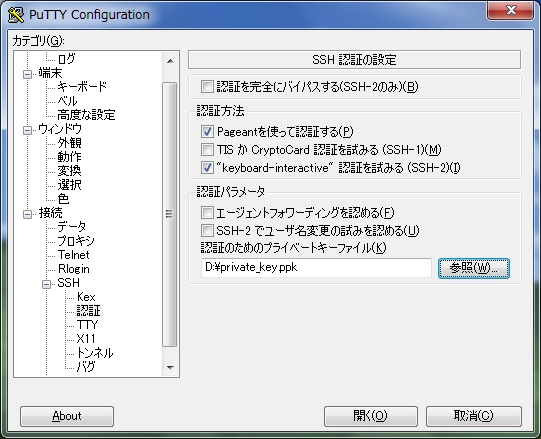
| [7] | Start Putty and select 'private_key' like follows. |
|
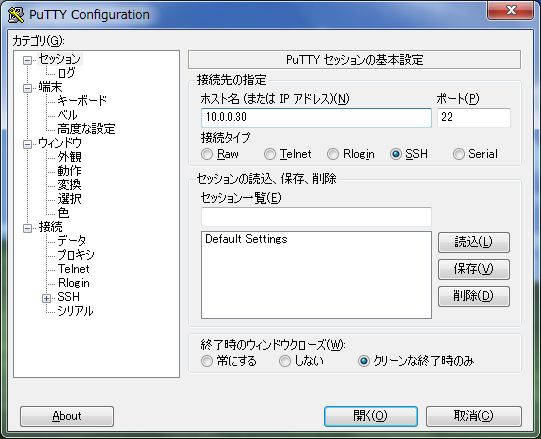
| [8] | If All OK, connect to the server with keys authentication. |
|
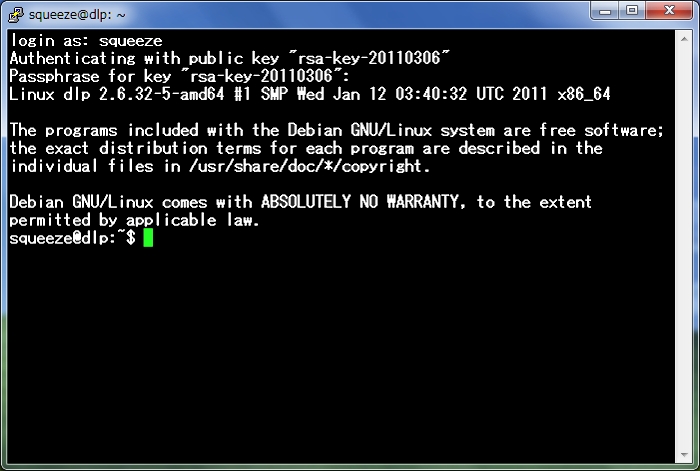
| [9] | Passphrase you set is required to input fpr login. After inputiing correct one, it's possible to login like below. |
|